

Real Video Com Checks That Show if Footage Is Genuine

The popular advice to look for strange hands, bad lip sync, or an unnatural blink isn't enough. Those clues can justify a closer look, but they can't establish who recorded a clip, whether its caption is accurate, or whether someone cut away the words that change its meaning. Before you trust a video, separate what the file shows from what someone wants you to believe.
What Real Means for an Online Video
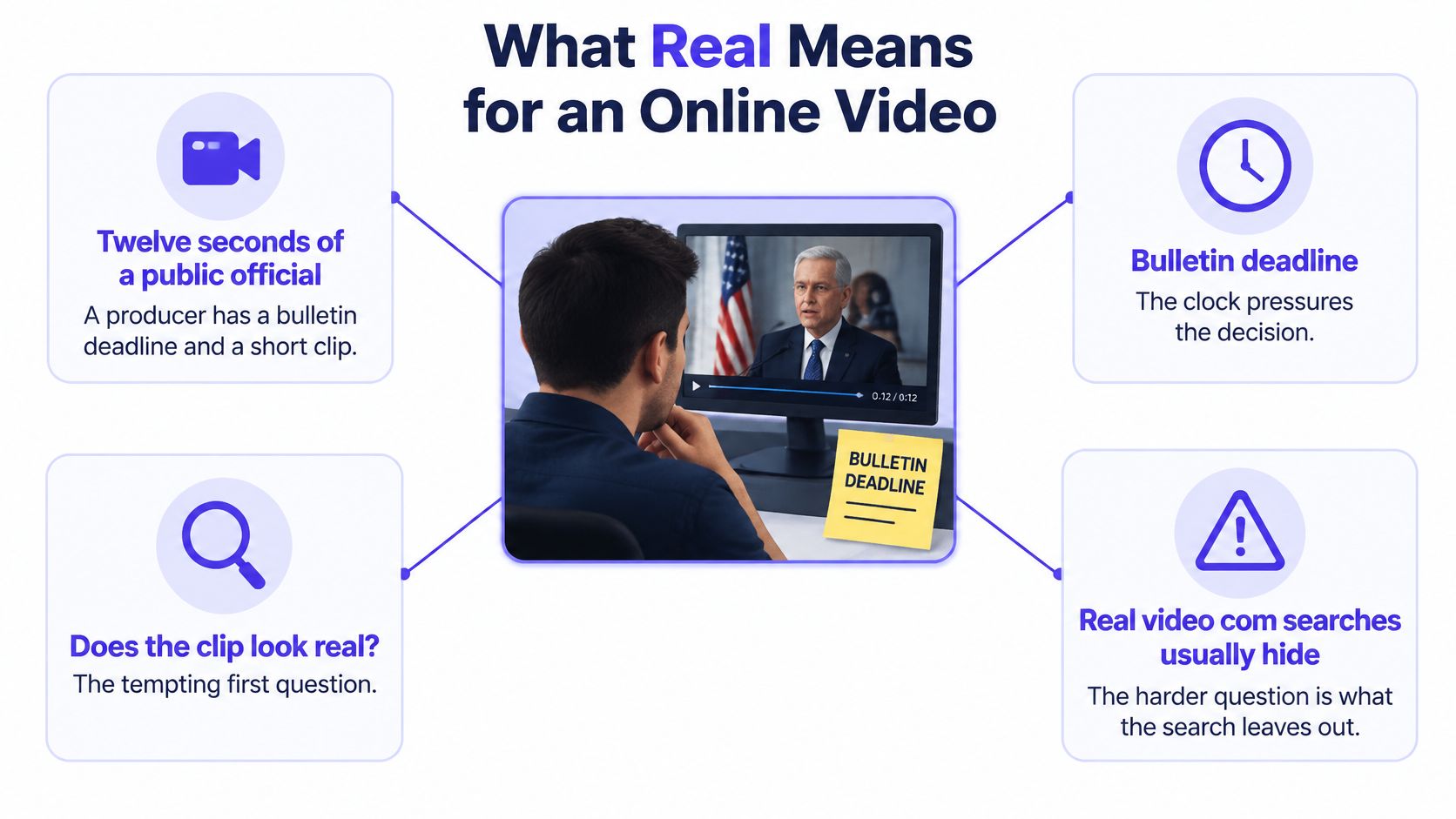
Say a producer has twelve seconds of a public official speaking and a bulletin deadline approaching. The face looks familiar, the voice sounds right, and the quote would lead the broadcast. Asking whether the clip looks real feels sensible, but it leaves the most important questions unanswered.
A search for real video com often hides several different verification needs. The producer needs to know whether the received file matches the capture, who recorded it, whether the speaker is correctly identified, and whether the sound belongs with those pictures.
Five separate claims: File integrity, capture origin, identity, event context, and absence of meaningful edits.
An unaltered recording can show a staged stunt. A genuine speech can become misleading when someone rearranges its sentences, even if every face and spoken word came from a camera recording.
A Record Isn't an Eyewitness
Think of a provenance record as a passport stamp and corroboration as an eyewitness account. A stamp documents a document's travels; a witness can speak to what happened. Neither replaces the other.
A missing watermark or Content Credential isn't grounds for calling the footage fake. Equally, an orderly provenance record isn't a guarantee that the people in front of the camera acted in good faith.
There's also a naming trap. RealVideo was streaming technology developed by Progressive Networks, later RealNetworks, commercially released in 1997 for an internet dominated by dial-up connections, according to the RealVideo historical overview. It supported downloadable playback and live or on-demand streaming; its name describes technology, not an authenticity assessment.
An old RealVideo download, or a file associated with real.com, therefore isn't a verdict that footage is genuine. Use observable signs to decide what needs investigation, then follow a repeatable check order before publishing, filing, or paying.
Signs That Footage May Be Manipulated
Keep this comparison beside the player. Read the final column as carefully as the suspicious sign: a clue identifies a question, not an answer.
Manipulation signs and what they do not prove
| Sign | What you notice | Can suggest | Does not prove |
|---|---|---|---|
| Facial micro-expressions | Blinks, smiles, or eye movement that freeze or disagree | Face swap or generated face | That the whole event is invented |
| Skin and texture | Waxy skin, melted hair edges, shimmering glasses | Diffusion or GAN-style generation | That a real face was not simply beautified |
| Lip sync | Mouth shape lags consonants or vowels | Dub, voice clone, or reshoot | Who originally spoke the words |
| Voice and room tone | Flat spectral quality or room noise that never changes | Synthetic audio | That the picture is also synthetic |
| Temporal flicker | Edges or identity shift from frame to frame | Generated or inpainted video | That ordinary compression is innocent or guilty |
| Body geometry | Extra or fused fingers, limbs passing through objects | Synthetic imagery | That a real clip was not later cropped |
| Light and reflections | Shadows or mirror images that break one light source | Composite or generated scene | The exact edit tool used |
| Metadata | Missing, generic, or rewritten container data | Re-encode, download, or strip | That the pictures themselves are fake |
Inspect Relationships, Not Just Odd Pixels
Start with faces and skin. A smile that freezes while the rest of the face moves deserves attention, as do shimmering earrings or glasses. But beauty filters, noise reduction, motion blur, and low-detail playback can also flatten skin or destabilize edges.
Then compare mouth and voice. Watch whether lip closure matches sounds that require closed lips, rather than judging an arbitrary open-mouth frame. Playback delays can create apparent lip lag, while aggressive audio cleanup can produce an unnaturally flat voice without voice cloning.
For motion over time, follow the same feature through neighboring frames. A hand that briefly looks fused during a fast gesture is weaker evidence than a hand whose structure changes while held still. Occlusion also matters: an arm passing behind an object can look impossible if the object's boundary has blurred.
Check light and geometry against the whole scene. A reflection that omits a clearly visible person is worth investigating, but windows, multiple lamps, and off-camera surfaces can complicate an apparently simple lighting setup. Don't assume every scene has a single light source.
Finally, inspect metadata without treating it as testimony. A creation-tool field may identify the software that last exported the file, not the camera that captured the event. A social download or screen recording may remove useful fields entirely.
When to Hold a Clip
Suppose you're reviewing a thirty-second social clip. Persistent lip lag combined with facial edges that change between frames justifies holding the clip while you seek the source, especially if the sender can't explain its origin.
One odd blink in a heavily compressed phone video doesn't justify the same conclusion. Nor are multiple clues automatically independent: one poor conversion might affect lips, texture, and timing together.
Write down the location and duration of each anomaly, not merely that the video seems suspicious. Every row is a reason to preserve the received file and investigate, never a standalone verdict.
How to Check a Video Before You Trust It
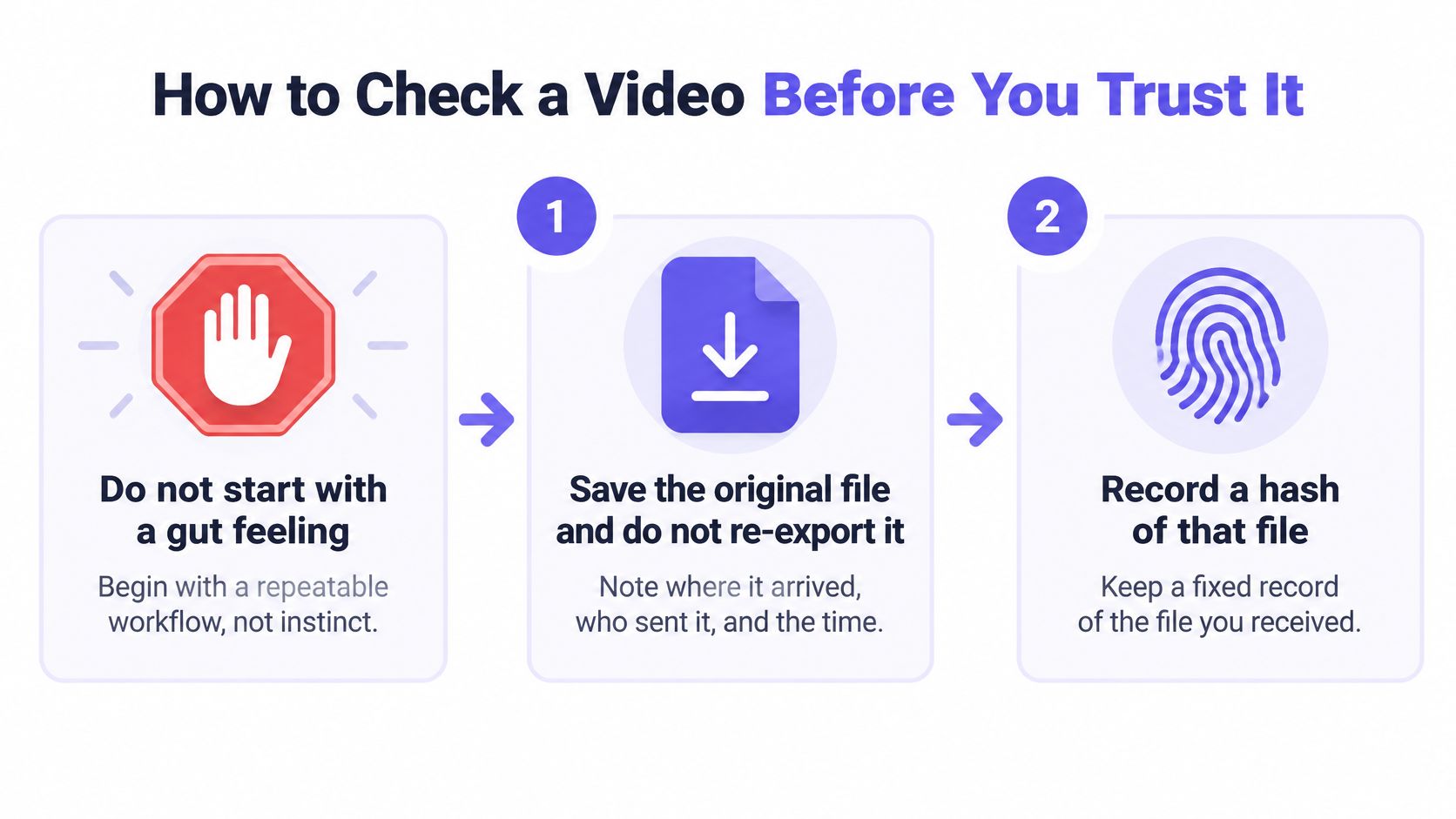
Don't start with a gut feeling. Start with a working copy, a preserved original, and a note that another editor or investigator could follow.
Preserve and Inspect
Save the original file without re-exporting it. Record where it arrived, who sent it, and the receipt time. If you received only a platform download, label it that way rather than calling it the camera original.
Record a cryptographic hash, such as SHA-256, and keep a transfer log. A matching hash lets you compare later copies with the file you preserved; it doesn't certify what happened before receipt. Don't substitute a filename for this comparison.
Inspect the container. MediaInfo or ffprobe can expose the codec, duration, creation-tool fields, and timestamp information. Record absent or inconsistent fields, but don't mistake an export date for the event date.
Watch the complete clip before isolating details. Pause on faces, hands, lips, shadows, and transitions. The common slip is inspecting only the sensational moment and missing the cut or caption that changes its interpretation.
Separate hearing from seeing. Listen with the picture covered, then watch with the sound off before replaying them together. This makes it easier to notice implausible room sound or mismatched performance without letting a convincing face settle your judgment.
Test Timing and Meaning
Motion rule: Uneven spacing, blocky fast action, or soft ringing may come from compression and live frame skipping. Keep the original container and decode to its presentation timeline before labeling the movement synthetic.
Review motion across a continuous passage. Follow identity, object boundaries, and continuity on either side of a suspicious frame. Don't assume that stepping through decoded images at uniform intervals reproduces the intended playback timing.
Inspect available provenance and Content Credentials. Record what validates, what the record covers, and what remains unavailable. Don't turn an absent record into an accusation or a valid record into approval of the caption.
Corroborate the event independently. Seek another recording, a verifiable location, a fuller speech, or a witness you contact through an established route. If the question is where the clip came from, use these methods for identifying a video's source and context, rather than relying on its latest uploader.
Finish with a short decision note: confidence in the file, confidence in the event, and the limits of both. Name the specific evidence that would change the decision, such as obtaining the uncut recording or confirming the request with the alleged speaker.
A deadline can shorten the investigation, but it can't convert an unfinished check into a passed one. When the necessary claim remains unresolved, hold the action that depends on it.
When Codecs Mimic a Fake Video
A harsh encode can imitate several suspicious signs at once. Legacy RealVideo is a useful example because its designers prioritized delivery over constrained connections, not pristine frame inspection on a modern editing timeline.
The IEEE technical evaluation of RealVideo 8 describes a motion-compensated hybrid codec that combines motion prediction, adaptive transforms, and statistical modeling. Its live single-pass rate control can decide whether to encode or skip frames using the current and previously encoded pictures.
That means the codec doesn't store every picture as an independent photograph. Prediction dependencies and skipped frames can produce uneven-looking motion without anyone generating the scene.
Separate Delivery Artifacts From Content Changes
Codec behavior versus a generation clue
| What you see | Ordinary cause | Do not conclude | Better next check |
|---|---|---|---|
| Uneven frame spacing | Motion-compensated prediction or live frame skips | The clip was AI-generated | Decode to the presentation timeline |
| Blocky motion on fast action | Low-bitrate streaming encode | Faces were swapped | Compare with a higher-bitrate source |
| Steady packet rhythm | Constant-bitrate streaming | The file is untouched | Confirm container and codec identifiers |
| Bitrate jumps on scene changes | Variable-bitrate allocation | An editor hid a cut | Review the picture, not the bitrate alone |
| Missing or odd metadata | Remux, download, or screen capture | The event is false | Preserve the original and hash it |
| Soft detail and ringing | Legacy codec compression; later RealVideo lacks a formal public specification | Modern diffusion artifacts | Treat as uncertainty, seek another copy |
Constant-bitrate encoding aims for predictable delivery, while variable-bitrate encoding can allocate more data to demanding motion or scene changes. The Library of Congress RealVideo format description also identifies the lack of a formal public specification for RealVideo 10, an interoperability concern rather than a manipulation finding.
Don't attribute every soft edge to that documentation gap. The visible artifact comes from encoding and processing; incomplete documentation makes faithful interpretation and preservation harder.
Read the Container Before Judging the Scene
Remuxing changes packaging, transcoding changes the encoded stream, and screen capture records a playback rather than preserving the source. Any of these can remove useful traces or introduce new ones, so packet rhythm alone can't establish an untouched file.
The practical distinction between packaging and compression also matters with newer media, as explained in this guide to the WebM file format. A container extension isn't a complete description of how the pictures were encoded.
For legacy or heavily compressed footage, mark the affected observation as uncertain and request a cleaner copy. Don't label the event false merely because the surviving file is difficult to decode or inspect.
When a Score and a Provenance Record Disagree
A detector labels a forwarded clip probably real, but nobody can identify the recorder. In another case, Content Credentials validate, yet the editor has rearranged a genuine speech so the attached headline reverses its meaning.
Neither situation is resolved by choosing whichever signal sounds more technical. The outcome depends on the claim you need to establish.
When the detector and the record disagree
| Detector read | Provenance | What you may say | Next action |
|---|---|---|---|
| Probably synthetic | No chain of custody | Do not treat the clip as proof | Do not publish, pay, or file |
| Probably real | No chain of custody | Pictures may be honest and the file story is open | Finish the eight checks and corroborate |
| Any score | Valid record but a misleading cut | File history can be fine while the event claim is false | Report both confidences and do not run the claim |
Different Signals Answer Different Questions
A detector score estimates whether the content contains patterns associated with generation or alteration. It isn't an eyewitness statement, a source identification, or a calibrated probability that every claim in the caption is true.
A provenance system documents assertions about origin and processing history. A watermark may provide a different signal about production or distribution; it shouldn't automatically be treated as a complete editing history.
The Detecting AI guide to video authenticity distinguishes probabilistic detection from provenance and notes that absent Content Credentials don't prove falsity. Transcoding and watermark removal also complicate interpretation, which is why a confident result must remain attached to its tested file and stated limits.
For a practical explanation of what a credential can document, consult the guide to C2PA Content Credentials. Check the scope of the assertions rather than treating a validation symbol as editorial approval.
Resolve the Disagreement With Evidence
For the forwarded clip, ask for the source recording and contact the recorder independently. A favorable detector result may support continued investigation, but it doesn't supply the missing transfers or establish the recording location.
For the rearranged speech, obtain the full passage and compare the order of statements. The issue is meaning, so another detector pass won't answer the decisive question.
The same separation matters in legal work. Cryptographic provenance, statistical watermarking, and zero-knowledge attestations perform different evidentiary jobs; don't assume they satisfy the same requirements merely because each involves technical verification.
A valid file history can coexist with a false event claim.
Use a reporting sentence that exposes the unfinished work: “We have confidence in the received file's integrity, limited confidence in the claimed event, and have not independently contacted the recorder.” Adjust each clause to the evidence rather than copying a reassuring conclusion.
Where a Wrong Call About a Clip Costs
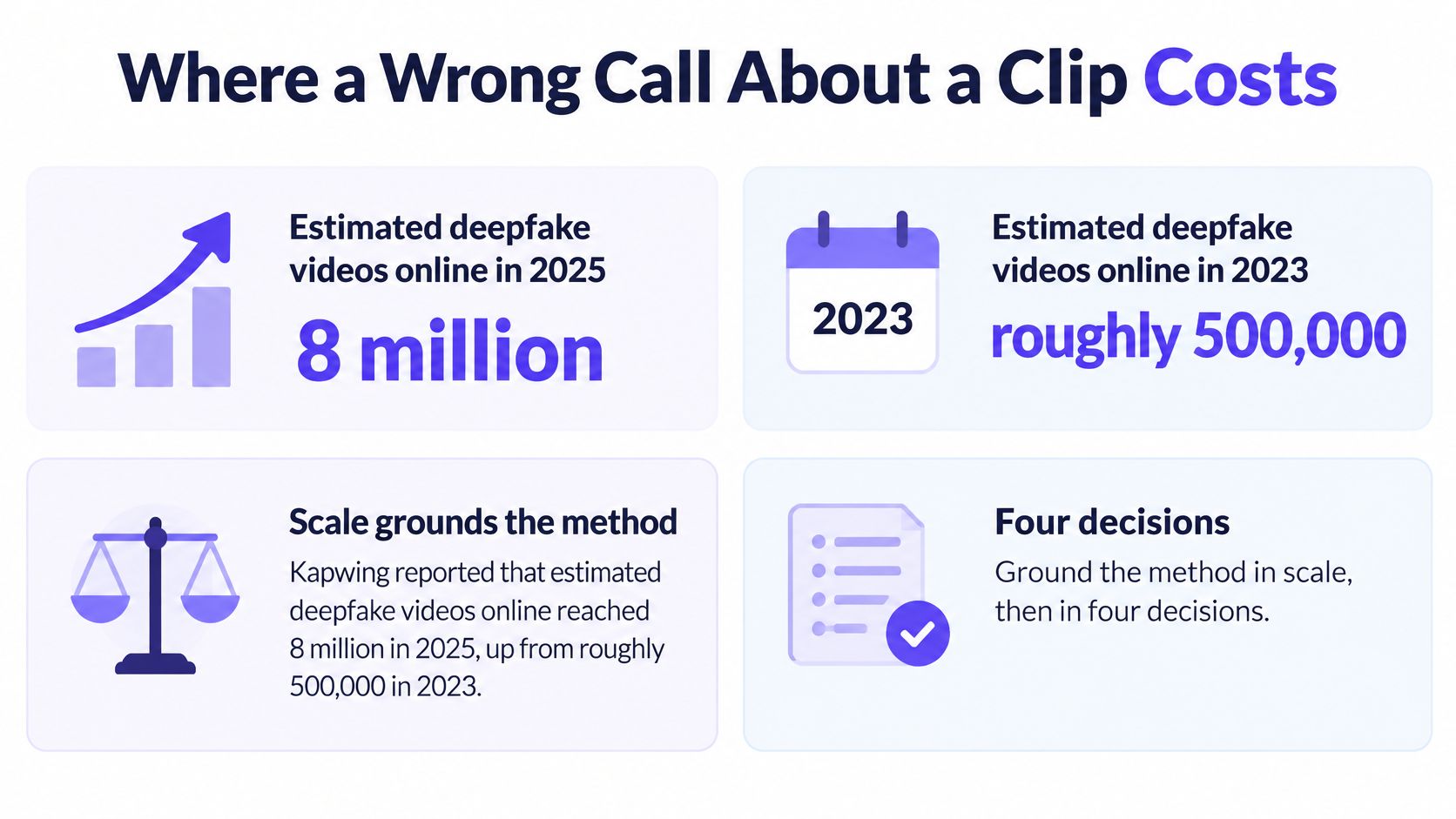
Kapwing reports that the estimated number of deepfake videos online reached 8 million in 2025, up from roughly 500,000 in 2023. These are estimates of online videos, not a count of fraudulent transactions or verified victims.
For broader fraud context, the FBI Internet Crime Complaint Center recorded 859,532 complaints and $16.6 billion in reported losses in 2024, according to the summary of its Internet Crime Report. Those figures cover internet crime generally, not losses attributable to deepfake video.
Match the Evidence to the Decision
A newsroom decides whether to run a tip. Hold footage when suspicious signs cluster and custody is missing. Even when the pictures look clean, verify the location, timing, and quotation before presenting the clip as evidence of a public event.
An investigator decides whether to use an exhibit. Preserve the received container, hash, transfer record, and analysis notes rather than keeping only a screenshot of a player. A technical examination can support an evidentiary assessment, but it doesn't replace the applicable authentication process.
A company decides whether to move money. Confirm a supposed executive's request through an established second channel, using contact details already on record. Don't use a number supplied during the suspicious call, and don't let a familiar face override payment controls.
An educator decides whether to assign a clip. Establish whether the material is documentary evidence, a reenactment, an illustration, or a synthetic demonstration. Disclosed generation may be appropriate for teaching, but students shouldn't mistake an illustration for an observed event.
Write the Limitation Where People Will See It
AI-assisted production isn't automatically deception: 51% of video marketers said in 2025 that they used AI tools to create or edit marketing videos, according to Luma's industry survey summary. That marketing measure doesn't establish how common synthetic lectures are.
The useful distinction is the claim attached to the material. A disclosed illustration and a purported recording of misconduct require different evidence.
Put file confidence, event confidence, and the unfinished check into the newsroom decision log, exhibit note, payment review, or lesson annotation. The person taking action should see the limitation before acting, not discover it in a technical appendix afterward.
Run the Next Clip Through Both Checks
Open the clip you almost forwarded and write a decision note before requesting any score. Keep the claim narrow enough that you can identify the evidence needed to support it.
- Claim required: Name what you need to establish, such as an intact received file, the speaker's identity, or the truth of the depicted event.
- Action withheld: Name what you won't do if that claim remains unresolved, such as running the story, wiring money, or assigning the clip as documentary evidence.
Don't write that the video must be real. That wording lets a strong result on one question hide an unanswered question somewhere else.
Add an Artifact Check
Use AI Video Detector for the artifact-analysis pass, not as a replacement for the decision note. Our detector analyzes a clip frame by frame to estimate whether it was created or altered using AI and returns a confidence score.
The analysis looks for patterns including diffusion artifacts, inconsistent facial micro-expressions, synthetic audio spectral patterns, and temporal flickering. These are signals about creation or alteration, not independent confirmation of the event.
Basic detection is free and requires no registration, so you can analyze a video without signing in. Drag and drop the file into the upload area or click to browse; supported formats are MP4, MOV, AVI, and WebM, with a maximum upload size of 500MB.
Keep the Result With the Decision
Uploaded videos are processed in real time and never stored on our servers. Preserve your own original and verification notes so the result remains connected to the file you assessed.
Paste the score beside your claim and withheld action, recording what the score describes. A high indication of AI alteration strengthens a hold already justified by thin custody; a low indication doesn't settle a one-source account of an event.
Save this distinction: What did you check about the file, and what did you establish about the event?
Run your pending clip through the artifact check, add the result to your note, and complete the independent confirmation needed for your decision. Before you forward, publish, file, or pay, save a final line naming the claim you established and the one that remains open.


