

URL to MP4 A Complete Guide to Downloading and Converting Videos

So, you have a video link and you need to get it into a clean, usable MP4 file. It might sound a bit technical, but the process really comes down to four main paths. You can use a simple web-based converter, dig into your browser's developer tools, add a handy extension, or go all-in with a powerful command-line utility.
Choosing Your Best Method to Convert URL to MP4
Picking the right approach to turn that URL into an MP4 hinges on what you value most. Are you after a quick, no-fuss download, or do you need granular control over the final video's quality and format? Each method involves a different balance of speed, privacy, and the level of technical know-how required.
The four techniques we'll dive into each have their own strengths. Online converters are the easiest entry point—perfect for quick, one-off tasks where privacy isn't a huge concern. Browser extensions and developer tools offer a more integrated experience, keeping everything within your browser and avoiding third-party sites. And for those who don't mind getting their hands a little dirty, command-line tools like yt-dlp give you unmatched power and flexibility.
Finding the Right Tool for Your Needs
To make the right call, think about your specific goal. Are you just trying to save a funny social media clip, or are you archiving a high-resolution video where every pixel matters? Privacy is another major consideration. Handing a URL over to a random website is a very different proposition from running a local command on your own machine.
This decision tree can help you quickly figure out which path makes the most sense based on whether you prioritize speed, quality, or privacy.
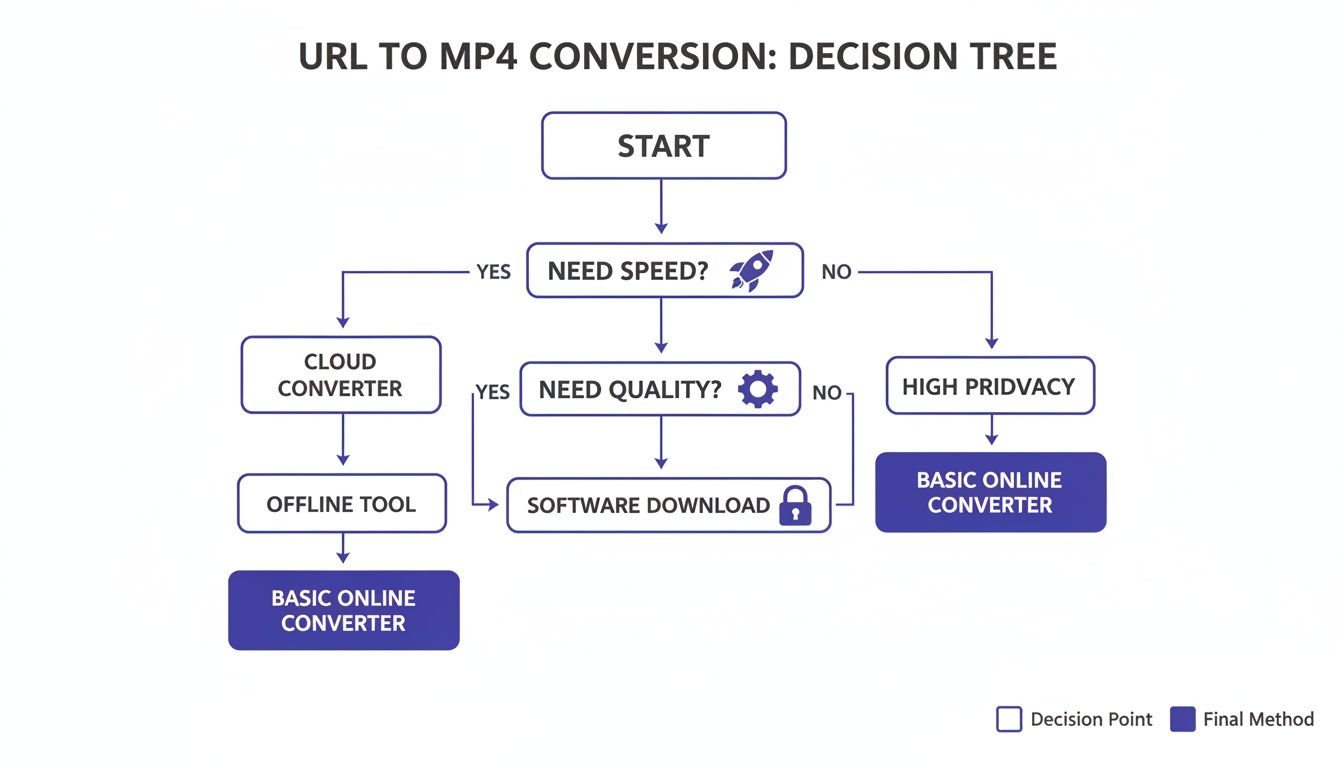
As the chart shows, if you just need it done fast, online converters are your go-to. But for the best quality and tightest security, command-line tools are the clear winner.
To give you a clearer picture, here’s a quick breakdown of how these four methods stack up against each other.
Comparison of URL to MP4 Conversion Methods
| Method | Ease of Use | Privacy Risk | Quality Control | Best For |
|---|---|---|---|---|
| Web-Based Converters | Very High | High | Low | Quick, one-off downloads of non-sensitive content. |
| Browser Developer Tools | Medium | Low | Medium | Tech-savvy users who want to avoid third-party software. |
| Browser Extensions | High | Medium | Low-Medium | Frequent downloads from the same sites with convenience. |
| Command-Line Tools | Low | Very Low | Very High | Power users, developers, and anyone needing bulk downloads. |
Ultimately, the best tool is the one that fits your immediate need without compromising on what's important to you, whether that's speed, security, or the final output.
Key Takeaway: There's no single "best" method for every scenario. The right choice is always a trade-off between convenience, quality, and security. Understanding this balance is the first step to finding a reliable process that works for you.
2. Using Simple and Fast Online Converters
When you just need a video file now and don't want to mess with installing software, an online converter is almost always the quickest path. These websites are incredibly straightforward: you give them a URL, their servers do the heavy lifting of grabbing and converting the video to MP4, and then they give you a download link. It all happens right in your web browser.
The appeal is pure convenience. Let's say you've found a great public domain tutorial or an old newsreel for a project, but there's no download button in sight. Instead of a complicated workaround, you just copy the URL, paste it into the converter's text box, maybe pick a resolution like 1080p, and hit "Convert." A few moments later, your MP4 is ready to go.
How to Stay Safe with Online Tools
But that convenience comes with a catch—a big one. The world of free online converters can be a bit of a digital Wild West. Many of these sites are plastered with aggressive ads, sneaky pop-ups, and trackers that follow you around the internet. Some even try to trick you into downloading malware disguised as a "video player."
You have to be smart about it. Before you paste a single link, take a quick look around the site for these major red flags:
- A storm of pop-ups: If you're immediately fighting off new windows and redirects, just close the tab. It's not worth it.
- No clear privacy policy: A trustworthy site will tell you what it does with your data. If you can't find a policy or it's full of confusing legal jargon, steer clear.
- Asking for personal info: A simple conversion tool has no business asking you to create an account or provide an email address.
- Pushing software downloads: This is the biggest warning sign. If a site insists you need to install a special "downloader" or "codec pack," run. Those are almost always bundled with adware or worse.
I have a simple rule for these sites: I only use them for public, non-sensitive, and non-copyrighted content. Never, ever use them for a private video or anything with personal information. Treat them like a public computer at a library—great for quick tasks, but you wouldn't do your online banking on one.
Best Practices for Using Web Converters
To make the experience as safe as possible, go in with a defensive mindset. First, make sure you have a good ad-blocker running, which will neutralize a huge chunk of the potential threats right away.
After you've downloaded the MP4, give it a quick scan with your antivirus software before opening it. It's a simple, two-second step that can save you from a world of trouble. By understanding the risks, you can take advantage of the speed of online converters without getting burned.
Using Browser Extensions and Developer Tools
If you'd rather not deal with external websites, there are two fantastic ways to grab an MP4 file right from your browser. These methods give you a lot more control and can feel a bit safer than pasting URLs into random online converters.
The first route involves using a browser extension. The second, more hands-on approach, uses the Developer Tools already built into browsers like Chrome and Firefox.
Think of browser extensions as tiny apps that live inside your browser. The ones built for video downloading are designed to spot video streams on a webpage automatically. When you land on a page with a video, the extension's icon usually lights up, signaling that you can download the file with just a couple of clicks.
Choosing and Using Browser Extensions Safely
The trick here is picking a good one. Always, and I mean always, install them from official stores like the Chrome Web Store or Firefox Browser ADD-ONS. Before you hit "install," take a minute to vet the extension to avoid anything malicious that could snoop on your activity.
Here’s what I look for in a trustworthy extension:
- A high user count: If an extension has hundreds of thousands or even millions of users, it’s generally a much safer bet than one with only a few hundred.
- Good, recent reviews: See what people are saying. You want to see recent comments confirming it works well and isn't doing anything sketchy.
- Clear permissions: Your browser will tell you what the extension wants to access when you install it. If a simple video downloader asks for permission to "read all your browsing data," that's a huge red flag. Back away slowly.
Digging into Developer Tools for a Manual Download
For those who want to avoid installing anything extra, your browser's Developer Tools offer a more direct, hands-on way to find the video's URL. This method is perfect if you're a bit more tech-savvy and want total control. It might look a little daunting at first, but it's really just a matter of finding the right file.
First, you'll need to open Developer Tools. The easiest way is usually by pressing F12 on your keyboard or by right-clicking anywhere on the page and choosing "Inspect." Once it's open, head over to the "Network" tab. This panel shows you every single file your browser is loading from the website's server.
By filtering the network requests to show only media files, you can pinpoint the direct link to the video itself. This approach completely sidesteps third-party tools, giving you a direct line to the source file.
Here's a look at what the Chrome Developer Tools interface looks like with the Network tab selected.
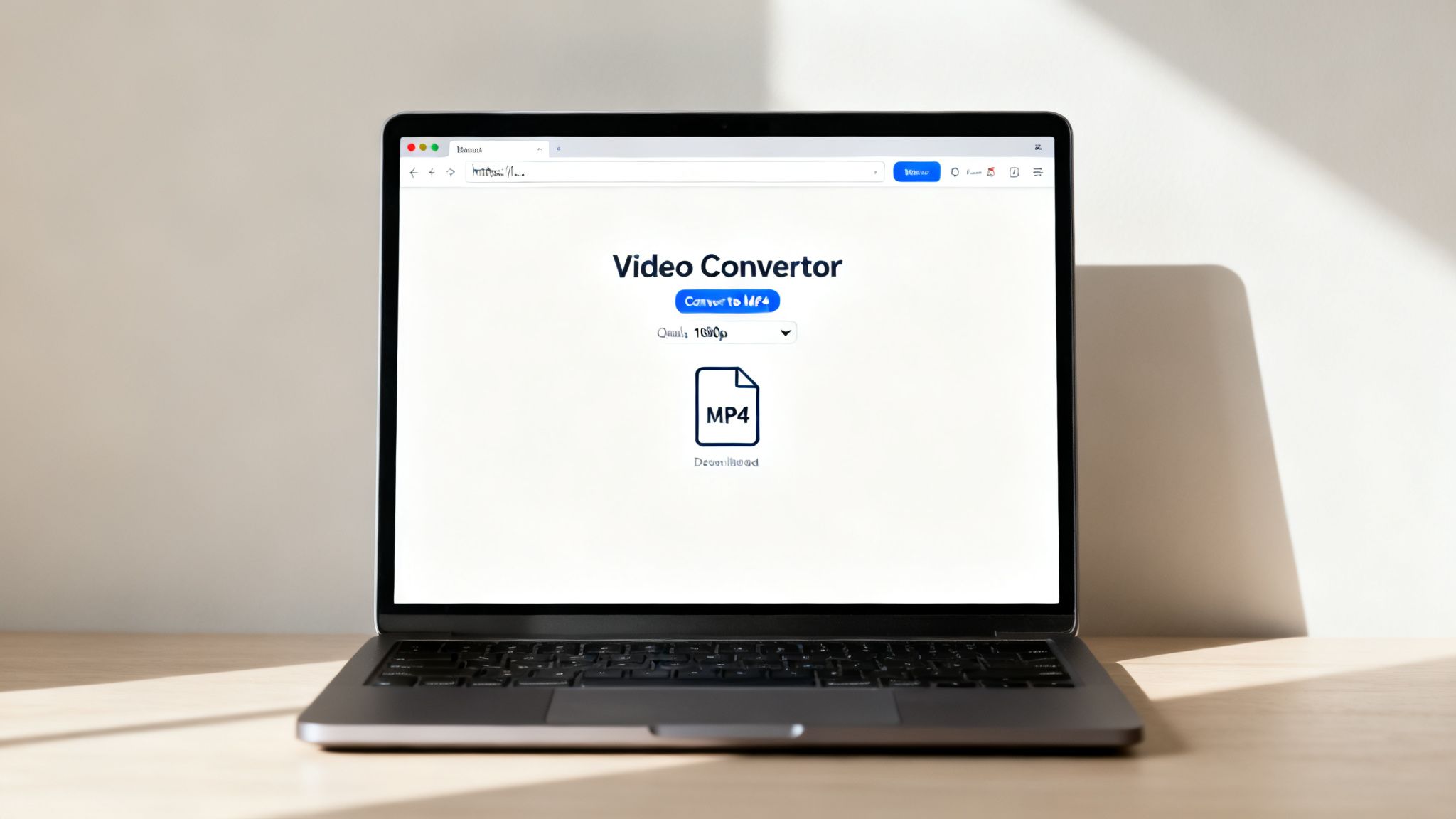
As you can see, there are a bunch of panels for inspecting everything from page elements to network traffic. In the Network tab, just click the "Media" filter to hide everything except video and audio files.
Now for the fun part: play the video on the page. You should see the MP4 file pop up in the list of network requests. From there, just right-click it, open it in a new tab, and you can save it directly to your computer. Easy as that.
Mastering Command-Line Tools for Professional Workflows
When you need serious power, flexibility, and complete privacy, nothing beats command-line utilities. Tools like yt-dlp and FFmpeg are the gold standard for developers, video archivists, and any power user who needs to convert a URL to MP4 with surgical precision.
Forget flashy web interfaces. These are potent, scriptable engines that run right on your machine, giving you total control over the entire process. This approach is inherently private—no third-party server ever sees the URLs you're working with. It's the go-to workflow for professionals who demand a level of reliability and customization that web converters or browser extensions just can't match.
Getting Started with Yt-dlp
Yt-dlp, a fork of the classic youtube-dl, has become the de facto tool for downloading video content from the web. It supports hundreds of websites and gives you an incredible range of options for grabbing exactly what you need.
Once you have it installed, you can start using some practical, real-world commands right away.
Downloading the Best Available Version
For the simplest case, grabbing a video in the highest available quality and saving it as an MP4 is dead simple. Just open your terminal and type:
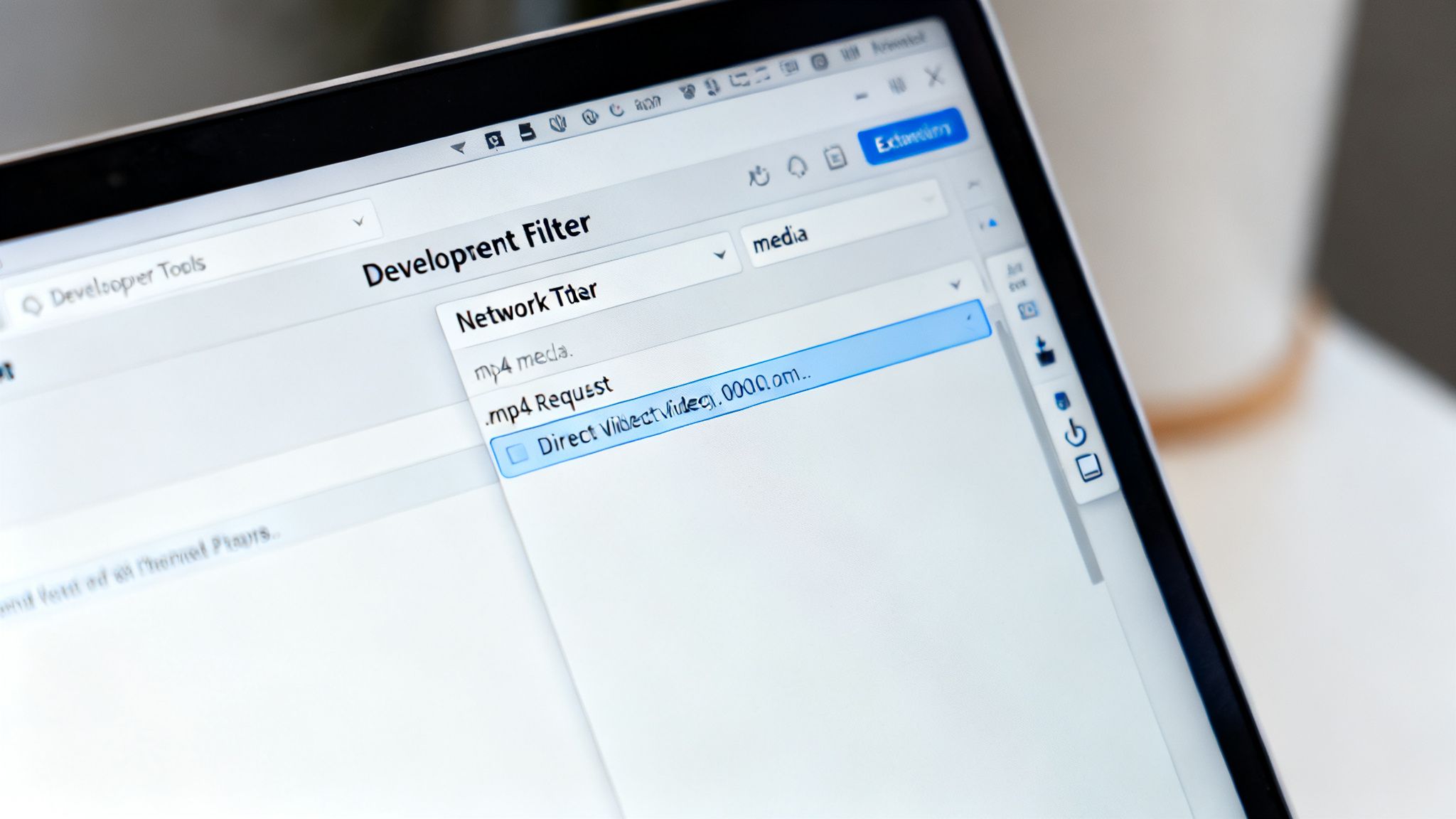
yt-dlp "VIDEO_URL_HERE"
Picking a Specific Video Quality
What if you need a specific resolution? Maybe 4K for a high-end editing project or 720p to save on disk space. You can tell yt-dlp exactly which version to download. First, you'll need to see what's available.
Run this command to list all the formats for a video:
yt-dlp -F "VIDEO_URL_HERE"
This spits out a handy table of every video and audio stream, each with a unique "format code." Let's say you spot a 4K MP4 stream you want with the code 313. You can download it directly:
yt-dlp -f 313 "VIDEO_URL_HERE"
Just Grabbing the Audio
Sometimes, you don't need the video at all. If you're looking to grab audio for a podcast or to run through a transcription service, yt-dlp can handle that too.
This command will extract the audio and save it as an MP3 file:
yt-dlp -x --audio-format mp3 "VIDEO_URL_HERE"
Here, the -x flag tells it to extract audio, and --audio-format specifies the output.
Pro Tip: Modern video platforms often serve video and audio as separate streams to make playback more efficient. Don't worry about that complexity. Yt-dlp is smart enough to find the best of both, download them, and automatically merge them into a single, perfectly synced MP4 for you.
Unlocking Advanced Control with FFmpeg
While yt-dlp is a champion at downloading, FFmpeg is the undisputed Swiss Army knife for video manipulation. In fact, yt-dlp often uses FFmpeg behind the scenes for merging and format conversions. But you can also use them together to tackle more advanced jobs.
Imagine you've downloaded a high-quality MKV file but your editing software needs an MP4. You can perform a lossless conversion—one that doesn't re-encode the video—which is blazing fast and preserves every bit of the original quality.
ffmpeg -i input_video.mkv -c copy output_video.mp4
This command tells FFmpeg to take the input file (-i input_video.mkv), directly copy its video and audio streams without touching them (-c copy), and simply repackage them into a new MP4 container (output_video.mp4).
It’s an invaluable technique for archivists and editors who need to manage different file formats without suffering any quality loss. These foundational skills are crucial for more complex workflows, too, like those in forensic analysis. To see how these concepts apply in professional settings, you can learn more from our guide on forensic video analysis software.
By getting comfortable with these command-line tools, you build a powerful, private, and highly customizable workflow for any URL-to-MP4 task you can dream up.
Navigating Content Limitations and Verifying Authenticity
So you’ve managed to convert a URL to an MP4. Great! But in the real world, getting the file is often just the first step. You'll quickly run into technical roadblocks that stop basic downloaders cold. And once you clear those, an even bigger question looms: is the video you just saved actually real?
Why Some Video URLs Fail to Convert
Ever get a frustrating error message after pasting a link into a converter? It’s usually not the tool’s fault. The problem is how modern websites deliver video content, and they use some pretty sophisticated tricks to protect it.
Here's what you're up against:
- DRM (Digital Rights Management): Think of this as a digital lock and key. The video stream is encrypted to prevent unauthorized copying, and standard downloaders simply don't have the key.
- HLS and DASH Protocols: Forget about downloading one single video file. Modern streaming services use protocols like HTTP Live Streaming (HLS) or Dynamic Adaptive Streaming over HTTP (DASH). These break the video into a bunch of tiny, encrypted chunks that your browser reassembles on the fly. Simple download tools just can't put that puzzle back together.
It's also crucial to remember the legal and ethical side of things. Ripping copyrighted material to share it without permission is illegal. Always be mindful of copyright laws and the website's terms of service.
The Growing Need for Video Authenticity
Once you have that MP4 on your hard drive, you have to ask a question that's become unavoidable: can I trust this? Video manipulation is easier than ever, and any downloaded file could be a trojan horse for misinformation. For anyone in journalism, law, or corporate security, using an unverified video is a massive liability.
This is where the battle against digital fakes gets serious. Deepfake fraud has turned the humble MP4 into a potential weapon. The market for detection technology is absolutely exploding—it's projected to skyrocket from USD 213.24 million in 2023 to an incredible USD 3,463.82 million by 2031. That growth isn't just hype; it’s a direct response to how easily bad actors can bake synthetic elements into videos to power scams. You can dig into the deepfake detection market trends to see just how big this problem has become.
The numbers are stark. In the U.S., identity fraud involving deepfakes shot up from 0.2% to 2.6% between 2022 and early 2023. This isn't some far-off threat—it's happening now and causing real financial harm.
How to Verify Your Downloaded MP4
Verifying the integrity of a video is the final, non-negotiable step. This means analyzing the file for the subtle digital fingerprints and inconsistencies that give away manipulation. Specialized tools are built to do just this, adding a much-needed layer of security and confidence.
The verification process typically looks for:
- Visual Artifacts: Telltale glitches or strange patterns left behind by AI models.
- Audio Anomalies: Unnatural sounds, weird frequencies, or clumsy edits in the audio track.
- Temporal Inconsistencies: Unnatural motion, odd transitions, or anything that doesn't flow correctly from one frame to the next.
Running your downloaded MP4 through a verification tool gives you a confidence score on its authenticity before you ever share or use it. If you're handling critical footage, learning about methods for video evidence authentication isn't just a good idea—it's an essential part of a responsible, modern workflow.
Frequently Asked Questions About Converting URLs to MP4
Even with the best tools, you’ll likely hit a few snags when trying to turn a video URL into an MP4 file. Let's tackle some of the most common questions and clear up any confusion so you can get things done right.
Is It Legal to Download a Video from a URL?
This is a tricky one, and the answer almost always comes down to the video's copyright status and the website's rules. Grabbing copyrighted material without the owner's permission for anything beyond your own private viewing is usually against the law.
You're generally in the clear, however, if the content is in the public domain, has a Creative Commons license allowing downloads, or if you have direct permission from the person who owns the rights. When in doubt, always err on the side of caution and respect the creator's rights and the platform's terms of service.
Key Takeaway: Legality is all about permission. If a video is copyrighted and you don't have a license or the rights to download it, you're on shaky ground. Stick to public domain or openly licensed videos to stay safe.
What’s the Difference Between Converting and Downloading?
People often use these terms interchangeably, but they actually describe two different actions. It's a small but important distinction.
- Downloading is simply grabbing the video file from the server exactly as it is. When you use command-line tools or browser developer tools, you're almost always downloading the file in its original format.
- Converting means you're changing the file from one format to another. For example, if you give an online tool a URL for a WebM video and it gives you back an MP4, it's converting the file for you.
Knowing the difference matters because converting can sometimes degrade the video quality a little. A direct download, on the other hand, gives you a perfect copy of the source file.
Why Does My Downloaded MP4 Have No Sound?
This is an incredibly common problem, especially if you're using more hands-on methods like browser developer tools or certain command-line setups. To make streaming smoother, many platforms now deliver video and audio as separate files.
When you download just the video stream, that’s all you get—a silent movie. This is where a tool like yt-dlp really shines, as it automatically grabs the best video and audio streams and stitches them together into one seamless MP4 file. If you run into this issue, double-check that your tool is configured to handle separate audio and video tracks.
What Is the Most Secure and Private Method?
Hands down, command-line tools like yt-dlp running locally on your own computer are the gold standard for security and privacy.
With this approach, no third-party website or sketchy server ever gets a look at the URLs you're working with. Everything happens on your machine, away from prying eyes. If privacy is a major concern, staying away from web-based converters is the best move you can make. It’s a key part of good digital hygiene, just like understanding media literacy in modern education in our guide.