

AI Generated Video from Image: How It Works and Spot Fakes

An industry-tracking estimate puts the number of deepfake videos online at approximately 500,000 in 2023 and 8 million in 2025, a roughly 16-fold rise. Those figures aren't a universal census, but they point to a practical problem: a single photograph can now become a convincing moving clip. The synthetic-media estimate gives viewers more reason to check a video's source and behavior before treating it as evidence.
Why Still-Image Fakes Are Getting Harder to Spot
Say a photo shows a person standing beside a microphone. An image-to-video tool can turn that still into a clip with a head turn, a gesture, or speech-like mouth movement. The person in the photograph may be real, but the action in the video may never have happened.
A photograph is a sealed snapshot of one moment. Image-to-video generation behaves more like a ghostwriter, inventing what might happen just before or after that moment. The result can look documentary even though the moving details were generated.
That distinction matters because a fake doesn't need to invent an entire scene. A tool can animate a genuine portrait, change the person's expression, or add movement that makes a still image appear to record an event. A clip can therefore be misleading while retaining enough of the original photo to feel familiar.
Manual review also has limits. A quick glance may miss a face that subtly changes shape, an object that appears for only a few frames, or motion that doesn't fit the scene. Reviewers get more useful evidence by combining visual inspection with checks of movement, audio, encoding, and metadata.
The practical response isn't to treat every unusual video as fake. It's to check it in a repeatable way: look for a handful of visual and motion clues, compare the opening frame with the source image when possible, and see whether separate signals point to the same conclusion. A few minutes of structured review can help you avoid sharing a convincing clip before you know what it shows.
Quick Checks That Flag an AI-Animated Clip
Treat the checks below as a first pass, not a verdict. If you find two or more red flags in different categories, review the clip more closely. One odd frame may come from compression, low light, or fast camera movement, so look for patterns rather than relying on a single glitch.
| Check | Normal footage | Red flag |
|---|---|---|
| Hands and fingers | Finger count stays stable, and joints bend naturally | Extra, fused, or shifting fingers across frames |
| Faces and eyes | Gaze and blinks follow the scene | Gaze drifts, eyes don't track objects, or skin looks wax-smooth |
| Teeth and mouth | Tooth shape and count stay consistent | Teeth blur, change count, or fuse during speech |
| Text and logos | Letters remain readable and fixed | Letters warp, reverse, or change between frames |
| Background objects | Items stay put unless they move | Objects appear, vanish, or morph without cause |
| Lighting and shadows | Shadows match the scene's light source | Shadow direction changes or contradicts the scene |
| Hair and ear edges | Boundaries look consistent as the subject moves | Edges smear, pulse, or bleed into the background |
| Body motion | Limb length and posture remain plausible | Limbs stretch, shorten, or bend at impossible points |
| Audio and lip sync | Mouth shapes match speech sounds | Lips lag, lead, or repeat the same shape |
Watch the clip once at normal speed, then replay it at quarter speed. Pause around the biggest movement, such as a turn, wave, or spoken phrase. Those moments can reveal that a hand changes shape or a mouth no longer matches the audio.
Write down each flag with its timestamp and a short description. “Hand looks odd” is less useful later than “left hand, 00:04, finger count changes during wave.” Keep the original file too, since a downloaded or edited copy may introduce its own artifacts.
How a Still Image Turns Into Moving Frames
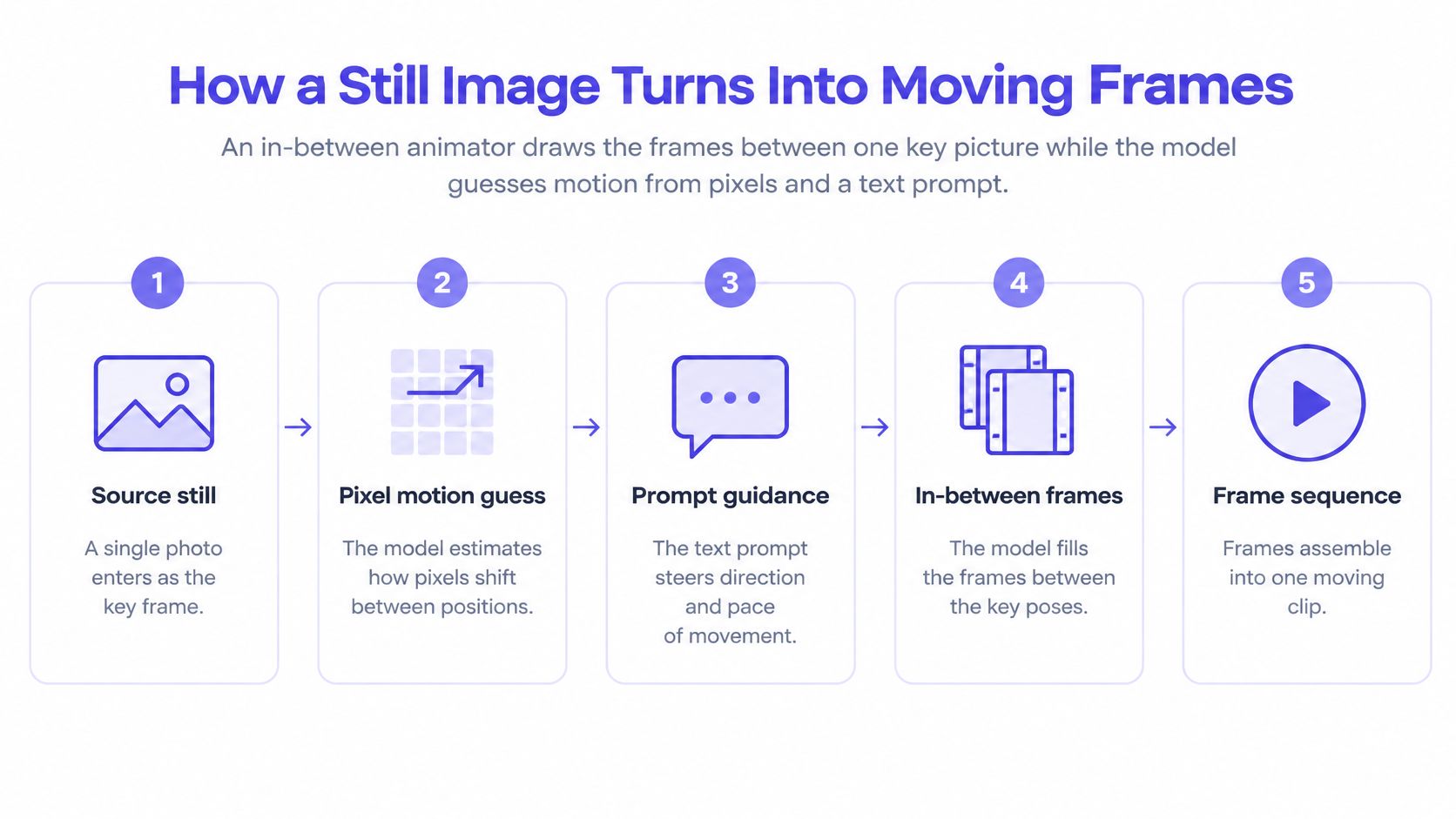
An animator can draw the frames between two key pictures to create the impression of movement. An image-to-video model does something related, but it predicts motion from the source pixels and a text prompt instead of drawing by hand. The prompt might ask the person to turn toward the camera or the leaves to move in the wind.
From a photo to a sequence
The process usually begins by converting the photo into a compressed internal representation. The model then estimates how the people, objects, and background might change in future frames, guided by the prompt and any motion controls. It generates the sequence through repeated refinement, often using a diffusion-style process that gradually resolves noisy frame information into an image.
Next, the model decodes that representation into visible pixels. A tool may also upscale the frames or interpolate additional frames to make movement appear smoother. These finishing steps can improve appearance, but they can also introduce their own distortions around edges or small details.
The hardest part is balancing identity and motion. The model has to preserve what's in the photograph while inventing plausible changes from one frame to the next. If it holds too tightly to the still, the result can look nearly frozen. If it improvises too freely, the person, object, or setting may drift away from the source.
Why quality has more than one measure
AIGCBench, introduced in a 2024 research paper, evaluates image-to-video output across five dimensions: image fidelity, motion effects, text-video alignment, temporal consistency, and overall video quality. The framework highlights why a clip can look polished but still be inaccurate: preserving the subject's appearance and producing believable motion are different challenges. The AIGCBench paper also reports different strengths across the systems its researchers evaluated, reinforcing that a single overall impression can hide weaknesses.
That distinction is useful for creators as well as reviewers. Someone planning movement for a short-form video can explore AI choreography for short-form creators, but a prompt that produces attractive motion doesn't guarantee that every object remains faithful to the original photo.
The stages suggest what to inspect. Encoding drift may show up as a changing face or outfit. A poor motion prediction may make an arm move strangely. Refinement can cause hair or fabric texture to swim, while decoding or upscaling may leave unstable edges. The question isn't only whether the clip looks smooth. It's whether the right details stayed true as the image moved.
Visual Artifacts When a Photo Starts Moving
A portrait's earring is round in the original photo, becomes a different shape during the clip, and appears on the opposite ear near the end. That small change illustrates identity drift: the generated video has preserved the broad idea of a person while changing a detail that should remain stable.
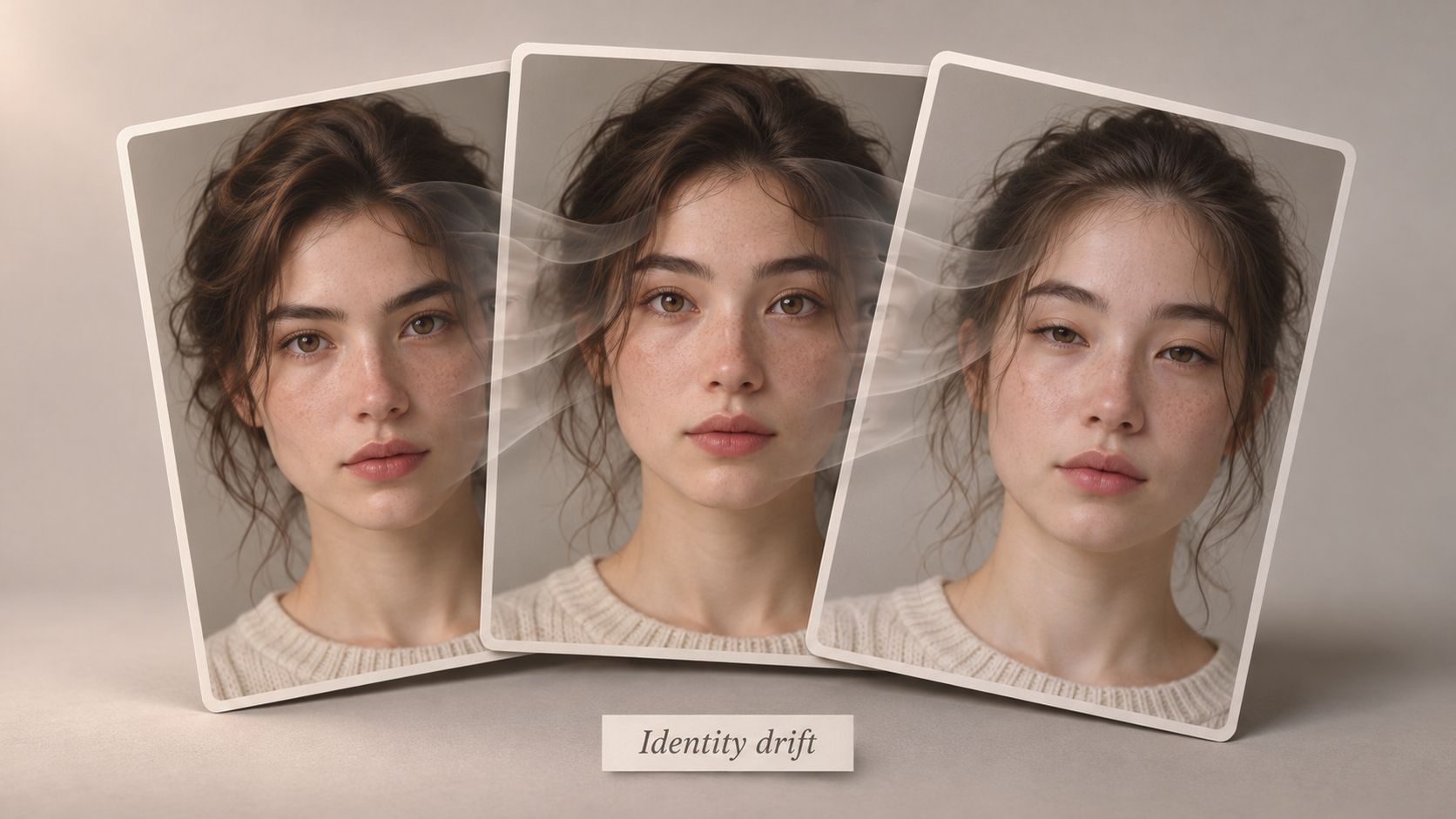
Start by comparing the original photograph with the first generated frame, side by side. Then choose a detail that should stay the same, such as the face, an earring, or a logo, and track it through the clip. This helps separate changes already present in the source from changes introduced during animation.
Check the details most likely to mutate
Pay particular attention to faces and eyes, hands, text, reflective surfaces, hair edges, and small accessories such as buttons or earrings. These details have distinct shapes that can be difficult to maintain as the camera or subject appears to move. Reflections can be especially revealing: if a person turns, the reflection may shift in a way that doesn't match the surface or the scene.
Other warning signs include new objects that weren't in the photograph, lettering that changes from frame to frame, and background lines that bend around a moving subject. Hair, fabric, and skin may also appear to crawl, blur, or smooth out as their texture changes across frames. At the edge of a subject, look for boundary bleeding, where hair, a shoulder, or an ear seems to merge into the background.
These clues don't all mean the same thing. A soft edge can result from compression, while a face changing shape through a turn suggests a different problem. Record what changed and where, and check whether the same feature remains unstable over time. If you're also checking a still for edits, image manipulation detection can help you distinguish changes to the source image from distortions that emerge during animation.
Realistic doesn't mean faithful
A generated clip can look lifelike while changing the source in important ways. That's why visual realism and fidelity aren't interchangeable. For journalism, legal review, advertising, or training, a natural-looking gesture may still be unusable if the person's appearance or the event's details have changed.
If a person's likeness is recognizable but their posture, accessories, or expression mutate, don't treat the video as a faithful record of what that person did. Describe it as an animation when that's what the available evidence supports. When the clip is meant to document an event, preserve the original image and make the comparison explicit.
Motion Errors That Only Show Across Frames
A liquid that appears to pour upward is a memorable sign that something about a clip's motion doesn't fit expectations. But one strange moment doesn't establish how the video was made. A careful reviewer checks whether the same kind of inconsistency recurs and whether it aligns with other clues.
Look for movement that breaks continuity
A still frame can't show flicker, shifting geometry, or a cut that changes the scene. Watch the clip at 0.25x speed, then pause at the largest movement. Check whether objects retain their size and position, whether the lighting stays consistent, and whether the background moves in a way that fits the scene's depth.
Flicker is worth a close look when skin tone or background texture pulses between frames without a clear change in lighting. A moving subject may also reveal inconsistent camera geometry: for example, background layers shift as if they have different depths, even though the movement doesn't make sense for the camera position.
Physics can offer another clue. A ball might seem to lose momentum after a bounce, a limb could change length while moving, or two objects might pass through each other. These errors matter more when they recur or appear alongside other signs, such as an unstable hand or a changing object boundary.
Check seams and alternative explanations
Some creators stitch separate generations together to extend a scene. At a stitch point, look for a sudden change in lighting, background, pose, or camera angle that doesn't match the preceding motion. Optical-flow analysis is one way to examine how movement travels between frames, but a viewer can begin by slowing down the clip and checking whether the change is abrupt.
Real footage can look irregular too. Handheld camera movement, low light, and compression can create flicker or wobble without any synthetic generation. Don't treat one awkward movement as a signature; check for repeated patterns, and note whether the same anomaly follows the subject or appears across the whole scene.
Telling Harmless Glitches from Synthetic Signatures
One anomaly isn't evidence of AI generation. A dropped frame, a compressed upload, or a platform re-encode can make ordinary footage look rough. A stronger concern arises when a defect repeats in a way that follows an object or feature rather than behaving like a general recording problem.
| Anomaly | Usually harmless because | Suspicious when |
|---|---|---|
| Blockiness in dark scenes | Heavy compression on low-bitrate uploads | Blocks align only with a moving face or object |
| Softness along edges | Platform re-encoding | Softness follows one object's contour across the clip |
| Flicker in low light | Sensor noise or auto-exposure | Flicker repeats in skin tone or background texture |
| Mouth shapes off-beat | Low frame rate or dropped frames | Lip shapes consistently mismatch speech sounds |
| Missing or odd metadata | A platform stripped camera data | Metadata claims a device and timestamp that conflict with the content |
Test for a repeated pattern
Frame-level inspection looks at individual frames for suspicious visual patterns. Temporal analysis asks whether movement remains continuous. Audio forensics checks whether the sound contains signs of synthetic processing or conflicts with the visible mouth movement. Metadata inspection examines information about the video's container, codec, and encoding.
The central question is whether an anomaly is a one-off or a recurring feature. For example, compression may soften a whole frame, while an unstable outline that repeatedly follows one person's face is more specific. Neither observation is conclusive by itself, but the contrast helps guide a closer review.
A research-style pipeline can compare the source photo with the first generated frame, then follow identity-bearing regions through the clip using facial landmarks, segmentation masks, or feature embeddings. It can also check whether the same irregularity appears across multiple frames rather than being limited to a single blurry moment.
Measures such as FVD or CLIP-based consistency scores can help rank outputs, but they don't prove that a clip is authentic or synthetic on their own. Write down which signals agree and which conflict. If visual inspection suggests manipulation but audio and temporal checks don't, keep the conclusion uncertain rather than turning one clue into a verdict.
Limits and Misconceptions About Detection Verdicts
“If it looks real, it is real”
A convincing clip can pass a casual glance while still changing the source image or inventing an action. The reverse can happen too: heavy compression, low light, or a screen recording can make genuine footage look oddly smooth, blocky, or unstable. Appearance is a reason to inspect, not a reliable test by itself.
“AI clips always carry a watermark”
A watermark can be useful when it's present and trustworthy, but its absence doesn't tell you how a clip was made. Some videos may have no visible marker, and editing or re-encoding can remove information that was attached earlier. Don't treat a missing watermark as proof for either side.
“One tool's score is final”
A detection score is an estimate, not a ruling. Tools look for particular signals, and their results can change as generation and editing methods change. A clean result doesn't establish that a clip is authentic, just as a high-confidence result shouldn't replace examination of the file and its source.
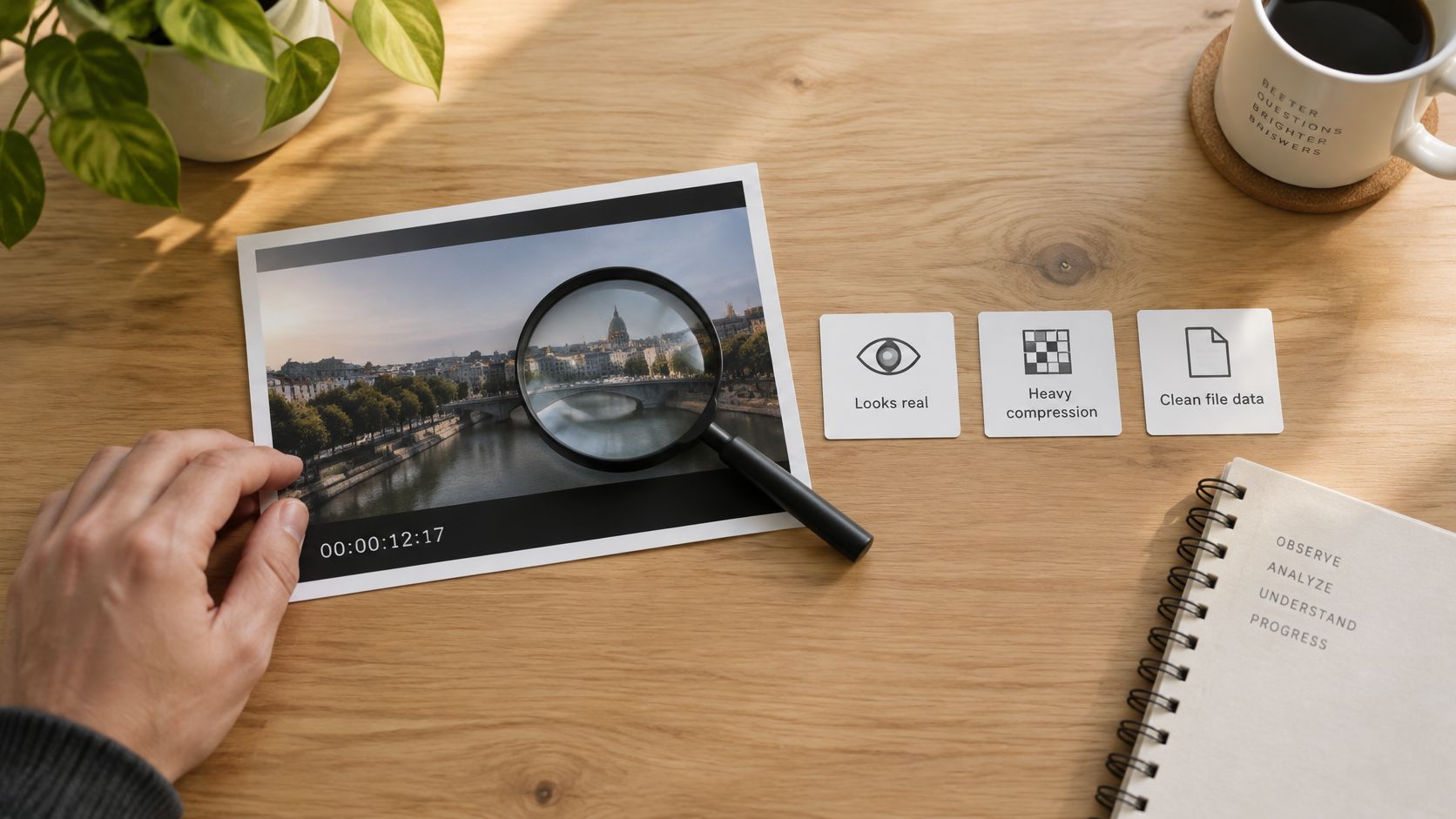
For a defensible review, keep the original upload untouched and note where and when you obtained it. Ask the uploader for the source file, then compare the event with independent footage if any is available. Preserve your notes alongside the video instead of relying on memory.
If you report a detector's result, describe it as one piece of evidence and include its uncertainty. A reviewer should be able to see what you checked, what the tool found, and what remains unexplained.
Verify a Suspicious Clip Before You Share It

- Hold the clip. Don't share it as evidence while its origin is unclear.
- Preserve the original file. Note where you got it and when. Don't edit or re-export your only copy.
- Log visible clues. Use the quick-check table and record each red flag with its timestamp.
- Compare the opening frame. If you have the source photo, compare it with the first generated frame. If you don't, try a reverse image search to find a likely original.
- Review movement slowly. Replay the clip at quarter speed and inspect major movements and any apparent stitch points.
- Check audio and metadata. Look for conflicts between the speech and mouth movements, and between the file information and what the video shows.
- Use a detector if the clip matters or the signals conflict. Our AI video detector analyzes a clip frame by frame to estimate whether it was created or altered using AI and gives a confidence score. It accepts MP4, MOV, AVI, and WebM files up to 500MB. Treat its score as evidence to weigh alongside your checks, not as a final ruling.
If you're unsure what a clip depicts, this guide to identifying a video can help you think through the source and context. For a consequential clip, report your findings and any uncertainty to an editor, legal team, or platform moderator. Keep a case file with the original source, checks performed, timestamps, and any detector output.
Before you share a video that could affect someone's reputation, safety, or a public decision, take the time to preserve it and check how its details change across frames. Use AI Video Detector as one part of that process, then share your findings with the timestamps and uncertainty clearly recorded.


