

How Long Is a 500MB Video and What Decides It

A 500MB video can run from about 6 minutes at high-bitrate 4K to roughly 4 hours at low-bitrate 480p. The runtime is controlled almost entirely by the bitrate the encoder chose.
So, how long is a 500MB video really? The honest answer isn't one fixed duration. A 500MB file might be a short, highly detailed clip, a medium-quality recording, or a long low-resolution lecture.
That sounds confusing until you separate the file's size from the amount of data it uses every second. Once you understand that relationship, you can estimate almost any clip yourself and make better decisions when a tool limits uploads to 500MB.
The Single Idea That Decides Every 500MB Estimate
How can the same 500MB limit hold very different video lengths? Start with one relationship:
File size = bitrate × duration
A bitrate measures how much data a video uses each second, usually in megabits per second, or Mbps. It works like a water pipe. A narrow pipe carries less water per second, while a wide pipe carries more. With the same tank, the narrow pipe takes longer to fill it.
The 500MB file is that fixed tank. A low bitrate spends fewer bits on each second, so the clip can continue longer. A high bitrate spends more data on motion, detail, and sound, so the file reaches the upload limit sooner.
Practical rule: Do not estimate runtime from file size alone. Find the bitrate first.
The exact relationship is file size in bits equals bitrate in bits per second multiplied by duration in seconds. A one-minute video at 5 Mbps is about 37MB, while one minute at 10 Mbps is about 75MB. That puts a 500MB file at about 13 minutes at 5 Mbps or roughly 6 to 7 minutes at 10 Mbps, after allowing for audio and container overhead. The video bitrate calculator explains the underlying formula and examples.
For an upload tool with a 500MB cap, bitrate is the first setting to check. Resolution, codec, frame rate, and audio help explain why an encoder selected a particular bitrate, but they do not change the formula. A detailed scene may require more data per second than a static talking head, even at the same resolution.
The estimate is therefore a measurement problem, not a fixed lookup. Read the clip's bitrate, multiply it by its duration, and compare the result with the available file-size limit.
Resolution, Codec, Frame Rate, and Audio in Plain English
Resolution sets the starting demand
Resolution counts the pixels in each frame. A 480p frame contains less visual detail than 1080p, while 4K contains substantially more. That extra detail usually requires a higher bitrate, so the same 500MB budget can hold very different runtimes. The resolution and bitrate summary shows how those settings translate into duration.
Resolution does not choose one exact bitrate. A talking head against a plain background may look acceptable with less data. Fast sports, crowds, or moving leaves change from frame to frame and often need more data to avoid blockiness. The scene matters as much as the pixel count.
Codec controls compression efficiency
A codec compresses video for storage and decompresses it for playback. It looks for information that stays the same between frames, then stores changes rather than repeating the entire image each time.
A more efficient codec can produce similar visual quality at a lower bitrate. At the same 500MB limit, that lower bitrate can mean more minutes. Codec choice also affects which devices can play the file and how long encoding takes. The MyKaraoke Video video size guide explains practical MP4 compression choices.
Frame rate changes how often motion is sampled
Frame rate is the number of frames shown each second. A 60 fps recording samples motion twice as often as a 30 fps recording, giving the encoder more images to process. It can therefore require more data, especially in a constantly moving scene.
The increase is not always exactly double because codecs reuse information between similar frames. Still, frame rate affects the bitrate needed for smooth-looking motion. Recording and export options are discussed in this OBS video encoder settings guide.
Audio adds a smaller stream
Audio has its own track and bitrate. Stereo audio at 128 kbps adds roughly 1MB per minute, so it can matter when a file sits close to a 500MB upload cap. Video usually accounts for most of the file, but the audio stream still takes part of the budget.
| Resolution | 30 fps (Mbps) | 60 fps (Mbps) | Typical Codec |
|---|---|---|---|
| 480p | 0.8–2 | 1.2–3 | H.264 or HEVC |
| 720p | 2.5–5 | 4–8 | H.264 or HEVC |
| 1080p | 5–12 | 8–20 | H.264, HEVC, or AV1 |
| 4K | 25–50 | 40–80 | HEVC or AV1 |
Use the table as a starting point, not a promise. Bitrate moves runtime most directly. Resolution, frame rate, codec, and audio determine how much quality that bitrate can deliver, while the scene determines how hard compression must work. For a real upload, check the file's total bitrate and leave room for audio and container data.
Quick Math That Turns Bitrate Into Minutes
How can you estimate the length of a 500MB video without guessing from resolution alone? Start with one relationship:
file size = bitrate × duration
For a quick 500MB estimate, use:
Minutes ≈ 500 × 8 ÷ bitrate in Mbps
The 500 represents approximate decimal megabytes. Multiplying by 8 changes megabytes into megabits, matching the bitrate unit. The result is a planning estimate, because audio and container data also occupy part of the file.
Worked example at 5 Mbps
Suppose a 1080p clip has a video bitrate of 5 Mbps.
- Convert the file allowance: 500 × 8 = 4,000 megabits.
- Divide by the bitrate: 4,000 ÷ 5 = 800 seconds.
- Convert seconds to minutes: 800 seconds is about 13 minutes and 20 seconds.
The actual export may be shorter because the total file includes audio and container information. For an upload tool with a 500MB cap, treat the result as a ceiling and leave some space.
Worked example at 1.5 Mbps
For a low-bitrate 480p recording:
- 500 × 8 = 4,000 megabits.
- 4,000 ÷ 1.5 = about 2,667 seconds.
- That equals roughly 44 minutes.
A lower bitrate can still suit a mostly static lecture. Fast movement, detailed textures, and visual noise need more data to maintain a clear picture.
| Resolution | Bitrate (Mbps) | Minutes (500 MB) | Minutes (500 MiB) |
|---|---|---|---|
| 720p | 2.5 | about 26.7 | about 28 |
| 1080p | 5 | about 13.3 | about 14 |
| 1440p | 10 | about 6.7 | about 7 |
| 4K | 25 | about 2.7 | about 2.8 |
A decimal 500MB and a binary 500MiB use different capacity definitions. A 500MiB allowance provides roughly 4.7% more capacity than 500MB, so identical bitrate settings can produce a slightly longer clip. The video-size calculator explains the MB versus MiB choice and separate audio accounting.
Carry-forward rule: Divide roughly 4,000 by the video bitrate in Mbps to estimate the minutes available within 500MB.
Why Two Codecs at the Same Resolution Give Different Lengths
Two 1080p files can look similar while using different amounts of data because their codecs compress motion differently. A codec doesn't store every pixel of every frame as a completely separate image. It predicts what remains unchanged, records differences, and uses mathematical coding to store those changes efficiently.
That process is what codec efficiency means in plain language. A codec that predicts more accurately can preserve acceptable quality with less bitrate. The tradeoff may appear in encoding time, device support, editing performance, or compatibility with the receiving platform.
The following comparison uses the practical codec examples supplied in the brief. These are broad estimates, not guarantees for every scene or export preset.
| Codec | Typical Bitrate | Estimated Runtime | Quality Note |
|---|---|---|---|
| Older MPEG-4 baseline | not fixed | roughly 20–25 minutes | Uses space less efficiently |
| H.264 | not fixed | about 35 minutes | Broad compatibility |
| H.265/HEVC | not fixed | roughly 55–70 minutes | More efficient, but support varies |
| AV1 | not fixed | roughly 70–90 minutes | Highly efficient, with heavier encoding demands |
At a fixed 500MB size, the codec itself doesn't magically create time. The encoder's bitrate and quality target create the difference. A more efficient codec reaches a similar visual result with fewer bits per second, which stretches the duration.
For creators, the usual decision is practical. H.264 is often the safest choice when the receiving system needs broad playback support. HEVC or AV1 can make better use of a strict size cap when the destination accepts them. The video codec analysis guide provides additional background on how codec behavior affects file characteristics.
A smaller file isn't automatically a better file. If compression removes facial detail, text, or motion evidence, the extra runtime may not be worth the loss.
Trimming and Compressing a Clip Before You Upload
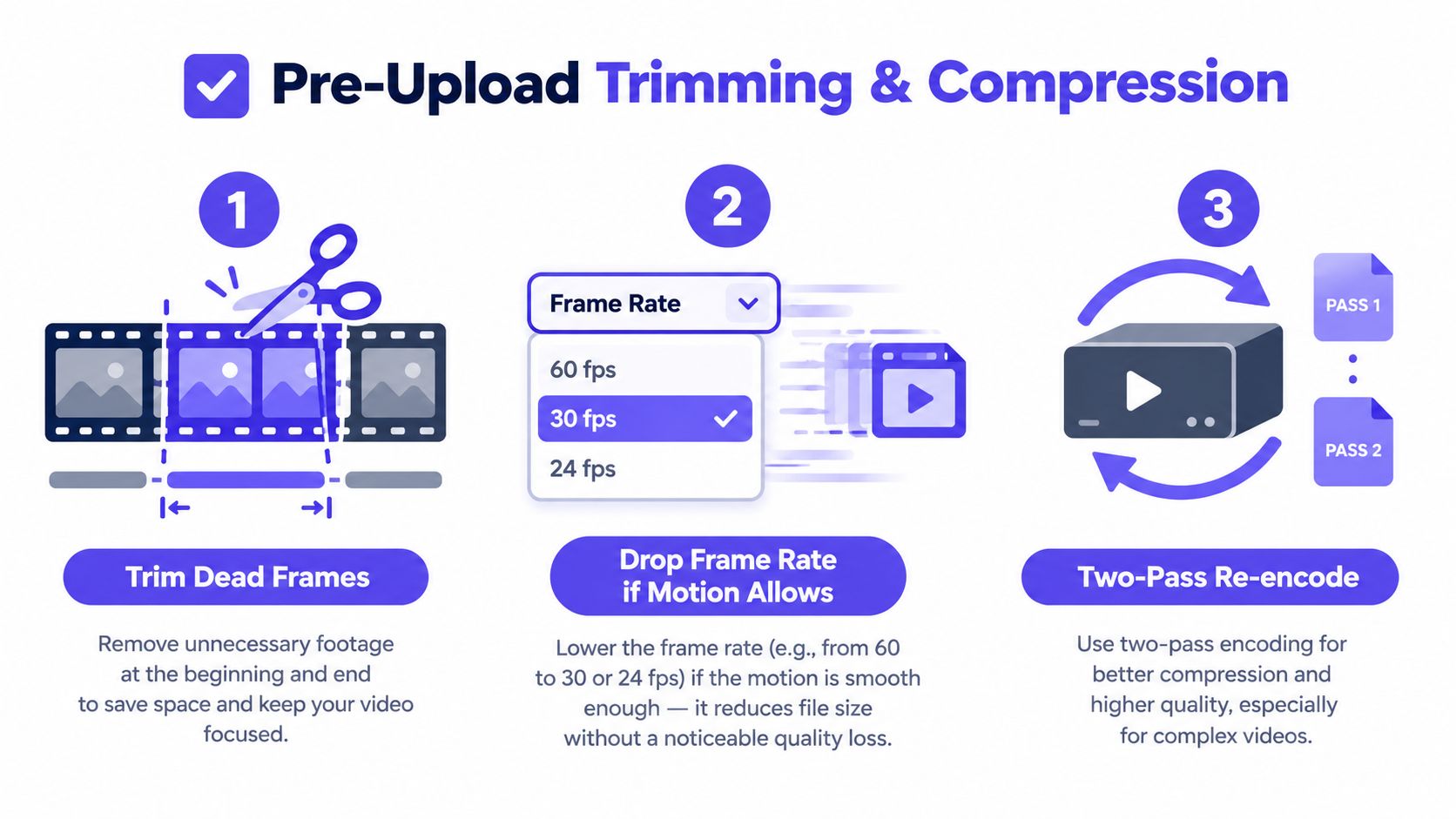
The safest way to reduce a file is to remove material nobody needs. Cut opening dead time, repeated takes, blank screens, and closing pauses before changing quality settings. Trimming reduces duration without making the remaining frames softer.
Use the least destructive adjustment first
If the clip still exceeds the limit, consider frame rate. A calm lecture or screen recording may remain clear after moving from 60 fps to 30 fps, while a sports clip or fast camera movement may need the smoother setting.
A second option is a more efficient codec, such as HEVC or AV1, if the receiving tool supports it. Two-pass encoding can also help because the encoder examines the whole timeline before distributing bitrate. It can spend more data on difficult scenes and less on simple ones, rather than making every moment compete equally.
Choose the container separately from the codec
A container packages video, audio, subtitles, and metadata. It isn't the same thing as the codec.
- MP4: The safest default for many upload portals and general playback.
- MOV: A sensible choice for Apple-centered editing pipelines when the receiver accepts it.
- WebM: Useful when you want a web-oriented file and know the destination supports it.
You can use HandBrake for a visual workflow, or choose a constant quality range such as CRF 23 to 28 when your workflow calls for that preset style. Browser-based compressors can be convenient for ordinary clips, but don't upload sensitive evidence to an unfamiliar service without checking its privacy practices. This guide to YouTube video compression covers related export decisions.
Power users can use FFmpeg for a direct conversion. For example:
ffmpeg -i input.mov -c:v libx265 -c:a aac output.mp4
That command changes the video codec and creates an MP4 output, but it doesn't guarantee a target size. Check the result and adjust the encoding settings if the upload portal enforces a hard cap.
Run this pre-upload checklist
- Trim unnecessary footage: Remove dead frames before compressing.
- Confirm the frame rate: Lower it only when the scene's motion still remains understandable.
- Select a compatible codec: Use the most efficient format the receiving tool can decode.
- Keep the container practical: MP4 is usually the first format to test.
- Check the final file size: Leave room for portal differences between MB and MiB.
Matching a Real Clip to a 500MB Upload Limit
A 500MB upload cap measures the file's storage, not the recording's duration. The same limit may hold only a few minutes of detailed 4K footage but much longer educational video. For an upload, estimate the clip from its bitrate, then leave room for audio and container overhead.
A phone-shot 4K clip
A phone recording in 4K at 60 fps captures detailed frames and frequent motion samples. At common 4K bitrates, 500MB may cover about 6 to 12 minutes. A higher-bitrate export reaches the cap sooner, as the resolution-based runtime guide gives the 4K range.
Trim unwanted footage before changing quality. If the full recording matters, export at 30 fps when the motion remains clear, or choose HEVC if the upload tool supports it. Test the finished file, because a codec that saves space is useful only when the destination can decode it.
A 1080p 30 fps screen recording
A mostly static screencast often compresses more easily than action footage. At around 5 Mbps, the bitrate calculation gives about 13 minutes and 20 seconds before audio and container overhead reduce the available runtime.
For a longer recording, remove unused sections first. Then try a more efficient codec or a controlled bitrate. Keep text and interface elements readable. A file that fits the cap but turns small labels into blurry shapes is not a successful upload.
A long 720p lecture
A 720p lecture can place substantially more content inside 500MB than a 1080p or 4K action clip. Typical 720p settings of 2.5 to 5 Mbps correspond to about 1 to 2 hours, although audio, movement, and codec choice change the result.
If the lecture is already clear, preserve that clarity instead of forcing the whole recording into a very low bitrate. Split it into sequential parts when the workflow allows. That approach keeps slides and faces easier to review while each file stays below the portal's limit.
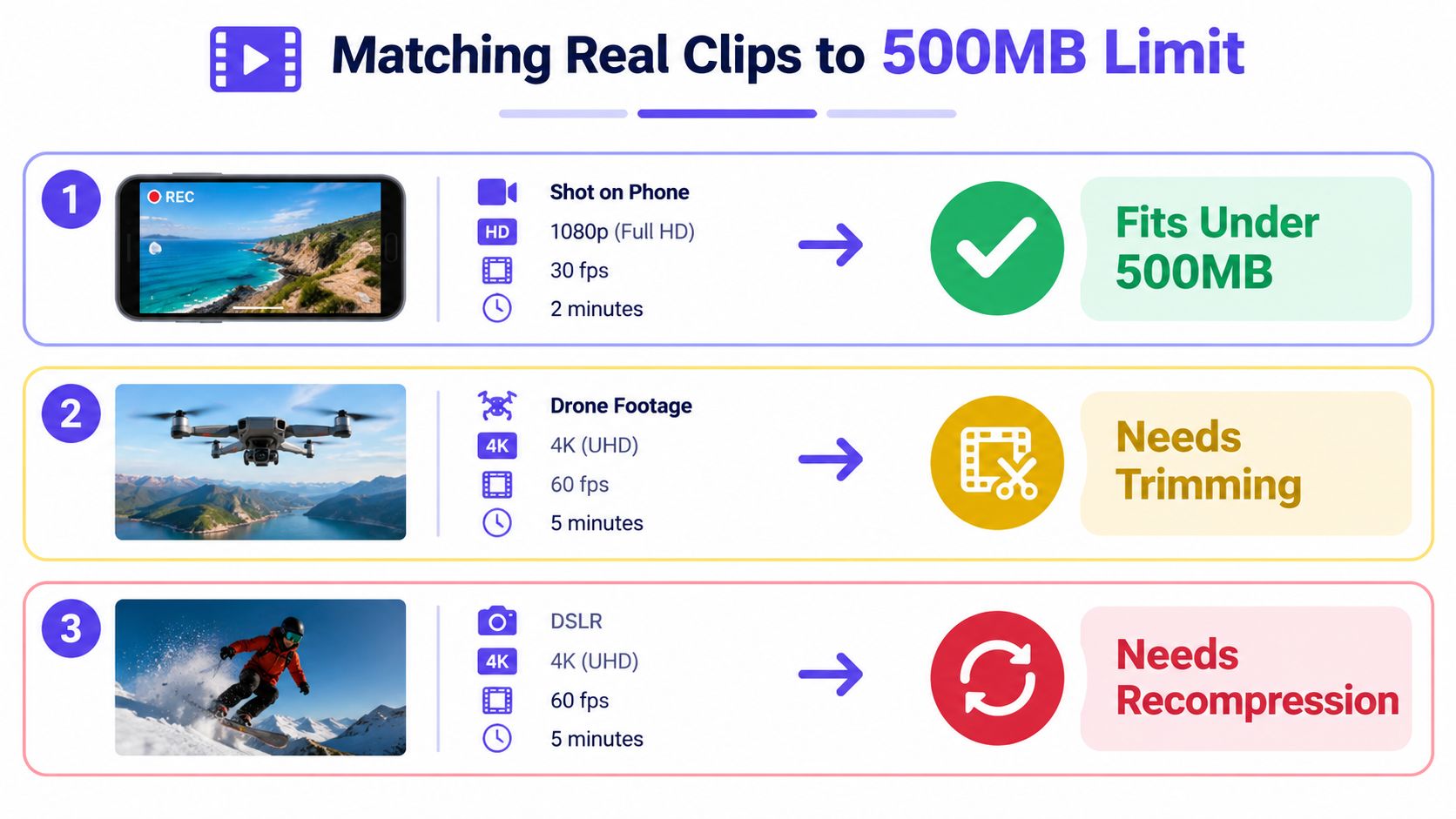
For authenticity review, read the bitrate first and the minute count second. Runtime is only the result of the bitrate budget. A file can fit technically and still lose visual or audio details needed for careful examination.
Putting the Variables Together and Answering Common Side Questions
How can you estimate a 500MB video without relying on one fixed runtime? Start with the relationship between bitrate and duration. Video size equals bitrate multiplied by duration, then audio and container overhead are added.
For each clip:
- Check the video bitrate.
- Multiply it by the planned duration.
- Consider the codec and how much the scenes change.
- Add audio and container overhead.
- Compare the estimate with the portal's definition of 500MB.
A 1080p lecture with steady slides may fit comfortably at a moderate bitrate. The same recording may become shorter under the same size limit if it includes camera movement, animated demonstrations, a higher frame rate, or a less efficient codec. Those conditions require more bits each second, much like a bus needs more space when it carries bulkier equipment.
The three common sources of confusion
| Question | Short Answer | Impact on 500MB Runtime |
|---|---|---|
| Is MB the same as MiB? | No. Decimal MB and binary MiB use different capacity definitions. | A binary cap can allow slightly more runtime. |
| Does audio matter? | Yes, though it usually uses less space than video. | It matters most when the file is close to the limit. |
| Is 60 fps twice as large as 30 fps? | Not necessarily. Codecs can reuse similar information between frames. | Expect a noticeable increase, not a guaranteed doubling. |
As noted earlier, a 5-minute video under 500MB requires about 13.3 Mbps. Audio at 128 kbps stereo can add approximately 1MB per minute. These figures show why a video-only estimate can be slightly too optimistic.
Motion determines how useful a higher frame rate is. A static presentation may remain clear at a lower frame rate, while rapid movement benefits from more frequent frames. Choose the smallest file that still preserves the details an audience or reviewer needs.
Before exporting, record the resolution, frame rate, codec, video bitrate, and audio bitrate. Estimate the runtime, inspect a demanding section, and reserve space for overhead. For an authenticity review, upload the original or least-compressed version to AI Video Detector once it fits the 500MB limit. If it does not, trim irrelevant footage or re-encode carefully so important visual and audio evidence remains available.